
Abstract: HTTPS (HTTP Secure) encryption is fundamental to modern web security, protecting sensitive data transmission through TLS/SSL protocols. However, network administrators, security researchers, and penetration testers often require the ability to decrypt and analyze HTTPS traffic for legitimate purposes such as troubleshooting, security auditing, and malware analysis. This technical article provides a comprehensive guide to decrypting HTTPS traffic using Wireshark, covering the underlying cryptographic principles, practical implementation methods, and real-world applications.
Decrypting HTTPS traffic should only be performed on networks and systems you own or have explicit authorization to analyze. Unauthorized interception of encrypted communications may violate laws. This guide is intended for legitimate security research, network troubleshooting, and educational purposes only.
1. Understanding HTTPS and TLS Encryption
1.1 The TLS Handshake Process
Transport Layer Security (TLS), the successor to SSL, establishes secure communication channels through a sophisticated handshake process. During the TLS handshake, the client and server negotiate cryptographic parameters, exchange certificates for authentication, and generate session keys used for symmetric encryption of application data.
The handshake consists of several critical phases:
- ClientHello: The client initiates the connection by sending supported cipher suites, TLS versions, and a random value
- ServerHello: The server responds with the selected cipher suite, its certificate, and another random value
- Key Exchange: Both parties establish shared secret material using algorithms like RSA, Diffie-Hellman (DH), or Elliptic Curve Diffie-Hellman (ECDH)
- Session Keys Generation: Using the exchanged secrets and random values, both parties independently derive identical session keys
- Finished Messages: Encrypted messages verify that both parties have successfully negotiated the same cryptographic parameters

Figure 1: The sequence of messages in a modern TLS 1.3 handshake.
1.2 Perfect Forward Secrecy (PFS) and Decryption Challenges
Modern TLS implementations predominantly use ephemeral key exchange algorithms (DHE, ECDHE) that provide Perfect Forward Secrecy. This cryptographic property ensures that session keys are not compromised even if the server's long-term private key is later exposed. Each session generates unique, temporary keys that are destroyed after use.
PFS presents a significant challenge for traffic decryption: possessing only the server's private RSA key is insufficient to decrypt traffic when ephemeral key exchanges are used. This is why traditional methods of using server private keys for decryption have become largely obsolete with modern TLS configurations.
2. Decryption Methods Overview
Method 1: SSLKEYLOGFILE
Compatibility: Universal - Works with all cipher suites including PFS
Use Case: Client-side traffic analysis
Requirements: Access to client system, browser/application support
Difficulty: Easy
Method 2: RSA Private Key
Compatibility: Limited - Only RSA key exchange (deprecated)
Use Case: Server-side decryption (legacy systems)
Requirements: Server private key, disabled PFS
Difficulty: Complex
3. The SSLKEYLOGFILE Method: Step-by-Step Implementation
The SSLKEYLOGFILE method is the most versatile and widely applicable technique for HTTPS decryption. It leverages a debugging feature supported by major browsers and TLS libraries (including Chrome, Firefox, and Edge) that logs the cryptographic session secrets to a designated file.
3.1 Prerequisites and Requirements
- Wireshark version 3.0 or later (for TLS 1.3 support)
- Administrative privileges for environment variable configuration
- A supported browser (Chromium-based browsers, Firefox)
3.2 Windows Configuration
Step 1: Create the Key Log File Directory
First, create a dedicated directory to store the SSL key log file:
mkdir C:\SSL_KeysStep 2: Configure System Environment Variable
The SSLKEYLOGFILE environment variable instructs supported applications to write session keys to the specified file.
Method A: Using Windows Settings (GUI)
- Press
Win + R, typesysdm.cpl, and press Enter. - Go to the Advanced tab and click Environment Variables.
- Under User variables, click New.
- Set Variable name:
SSLKEYLOGFILE - Set Variable value:
C:\SSL_Keys\sslkeys.log - Click OK on all windows to save.

Figure 1: Setting up the SSLKEYLOGFILE variable in Windows System Properties.
Method B: Using PowerShell (Command Line)
# Set the environment variable for the current user
[System.Environment]::SetEnvironmentVariable('SSLKEYLOGFILE', 'C:\SSL_Keys\sslkeys.log', 'User')

# Verify the variable is set
Get-ChildItem Env:SSLKEYLOGFILE
After setting the environment variable, you must completely close and restart your browser. Browsers read environment variables only during their initial launch process.
3.3 Verifying Key Log File Generation
After configuring the environment variable and restarting your browser, navigate to any HTTPS website and verify the file contains entries:
# Check first few lines in PowerShell
Get-Content C:\SSL_Keys\sslkeys.log | Select-Object -First 5

Figure 2: Successful generation of SSL secrets in the key log file.
Each line begins with a label (CLIENT_RANDOM, CLIENT_EARLY_TRAFFIC_SECRET, etc.) followed by the client random value (64 hexadecimal characters) and the corresponding secret material. These secrets enable Wireshark to derive the session keys used for decrypting application data.
4. Configuring Wireshark for Decryption
4.1 Importing the Key Log File
With the key log file being populated, configure Wireshark to use these secrets:
- Launch Wireshark.
- Navigate to
Edit→Preferences. - In the left panel, expand
Protocolsand scroll down to selectTLS. - Locate the field labeled
(Pre)-Master-Secret log filename. - Click
Browseand select your key log file (C:\SSL_Keys\sslkeys.log). - Click
OKto apply the configuration.

Figure 3: Configuring the Master-Secret log filename in Wireshark preferences.
Ensure "Reassemble TLS records spanning multiple TCP segments" is enabled in the TLS preferences to reconstruct complete messages.
5. Capturing and Analyzing HTTPS Traffic
5.1 Starting a Live Capture
With Wireshark configured, begin capturing traffic on your active network interface. Browse to any HTTPS site and observe the magical change: Wireshark will now show decrypted traffic layers.
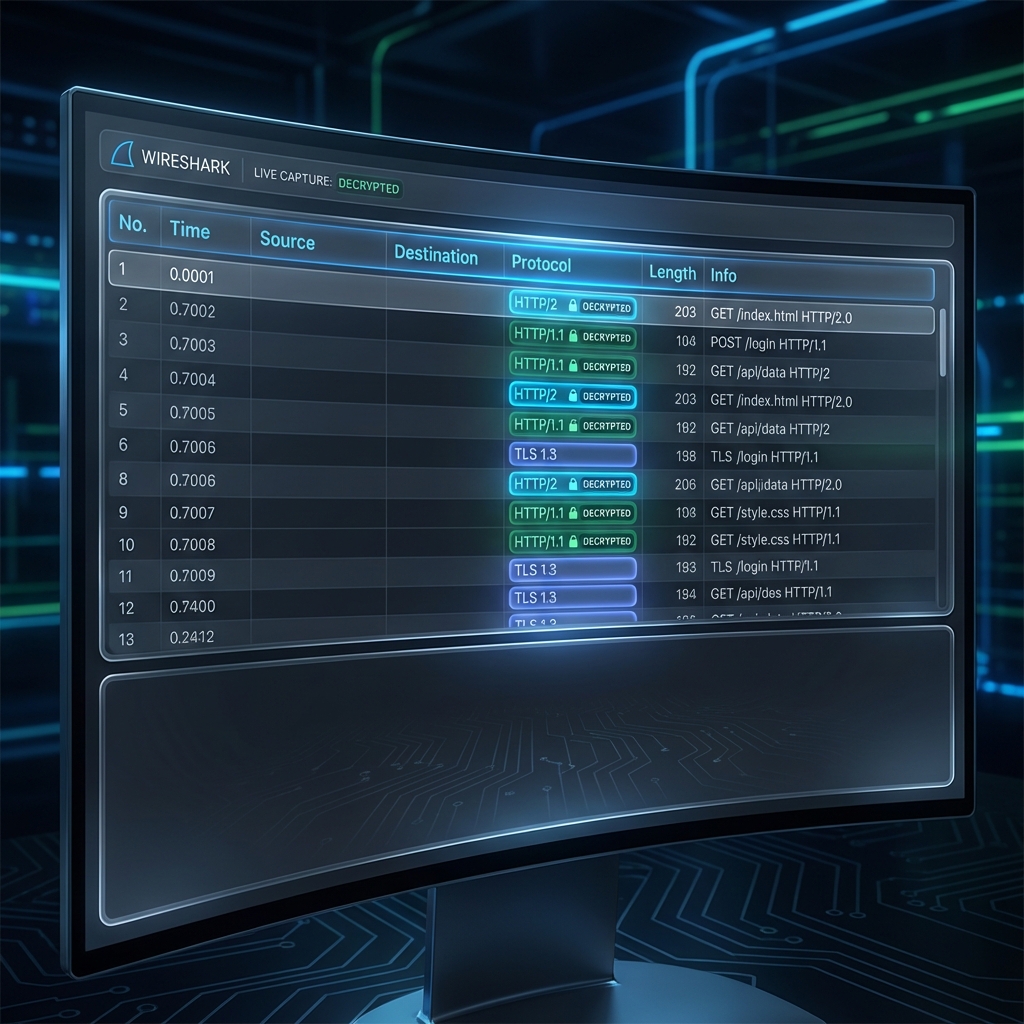
Figure 4: Modernized view of successfully decrypted HTTPS traffic in Wireshark.
5.2 Useful Display Filters
5.3 Identifying Successful Decryption
When decryption is successful, Wireshark displays decrypted application data as new protocol layers beneath the TLS layer. Key indicators include:
- Protocol Column: Shows protocols like
HTTP,HTTP2, or other application protocols instead of just "TLS". - Info Column: Displays readable HTTP methods (GET, POST), URIs, and status codes.
- Packet Details Pane: Expands TLS records to show "Decrypted TLS" or "Reassembled TLS" sections.
- Application Data: Human-readable HTTP headers and payloads visible in hex/ASCII dump.
5.4 Following Decrypted Streams
Wireshark's "Follow Stream" feature reconstructs complete conversations from individual packets:
- Right-click on a decrypted HTTP or HTTP/2 packet.
- Select
Follow→HTTP StreamorFollow→TLS Stream. - A new window displays the complete request and response exchange.

Figure 5: Modernized view of Wireshark's 'Follow Stream' window displaying decrypted request and response data.
5.5 Exporting Decrypted Objects
Extract files, images, and other objects transmitted over HTTPS:
- Navigate to
File→Export Objects→HTTP. - A dialog lists all HTTP objects (HTML pages, images, JavaScript, CSS, etc.).
- Select objects of interest and click
SaveorSave All. - Examine exported content for analysis, forensics, or documentation.

Figure 6: Modernized 'Export HTTP Objects' dialog showing files extracted from decrypted traffic.
6. Analyzing Captured PCAP Files
The key log file method works equally well for retrospective analysis of previously captured traffic, provided the key log file contains the relevant session secrets:
- Ensure the key log file used during capture is available.
- Configure Wireshark's TLS preferences to point to the key log file.
- Open the PCAP file:
File→Open. - Wireshark automatically applies decryption using the configured secrets.

Figure 7: Modernized view of Wireshark opening a pre-recorded PCAP file for retrospective decryption.
The key log file must contain session secrets that correspond to the sessions in the PCAP file. Always preserve key log files alongside their corresponding packet captures.
6.2 Advanced Troubleshooting
If Wireshark fails to decrypt traffic despite proper configuration, investigate these common issues:
6.3 Enabling TLS Debug Logging
For deep forensics, enable Wireshark's TLS debug file to log detailed decryption attempts:
- In TLS preferences, specify a path for
TLS debug file(e.g.,C:\SSL_Keys\tls_debug.log). - Restart Wireshark and reload your capture.
- Examine the log for cipher suite incompatibilities or missing keys.
# Example TLS debug log entries
ssl_load_key: swapping p and q parameters
ssl_restore_session: found session 5a6d8e9f3c1b
ssl_decrypt_record: decrypted 1024 bytes
association_find: TCP port 443 found 0x7f8d2c
7. Advanced Techniques and Use Cases
7.1 Decrypting Command-Line Tools
The SSLKEYLOGFILE method extends to any tool using NSS or OpenSSL libraries that respect the environment
variable, such as curl or Python's requests.

Figure 8: Modernized view of decrypting CLI-based HTTPS traffic (curl) using SSLKEYLOGFILE.
# PowerShell: Using curl with Key Logging
$env:SSLKEYLOGFILE = "C:\SSL_Keys\curl.log"
curl.exe -v https://api.itinternals.com/data

# Decrypted Output
* Trying 192.168.1.100...
* Connected to api.itinternals.com port 443
> GET /data HTTP/1.1
< HTTP/1.1 200 OK
7.2 Malware Analysis and Threat Intel
Decrypting traffic is vital for analyzing Command-and-Control (C2) communications, extracting IOCs, and reversing malicious communication patterns.
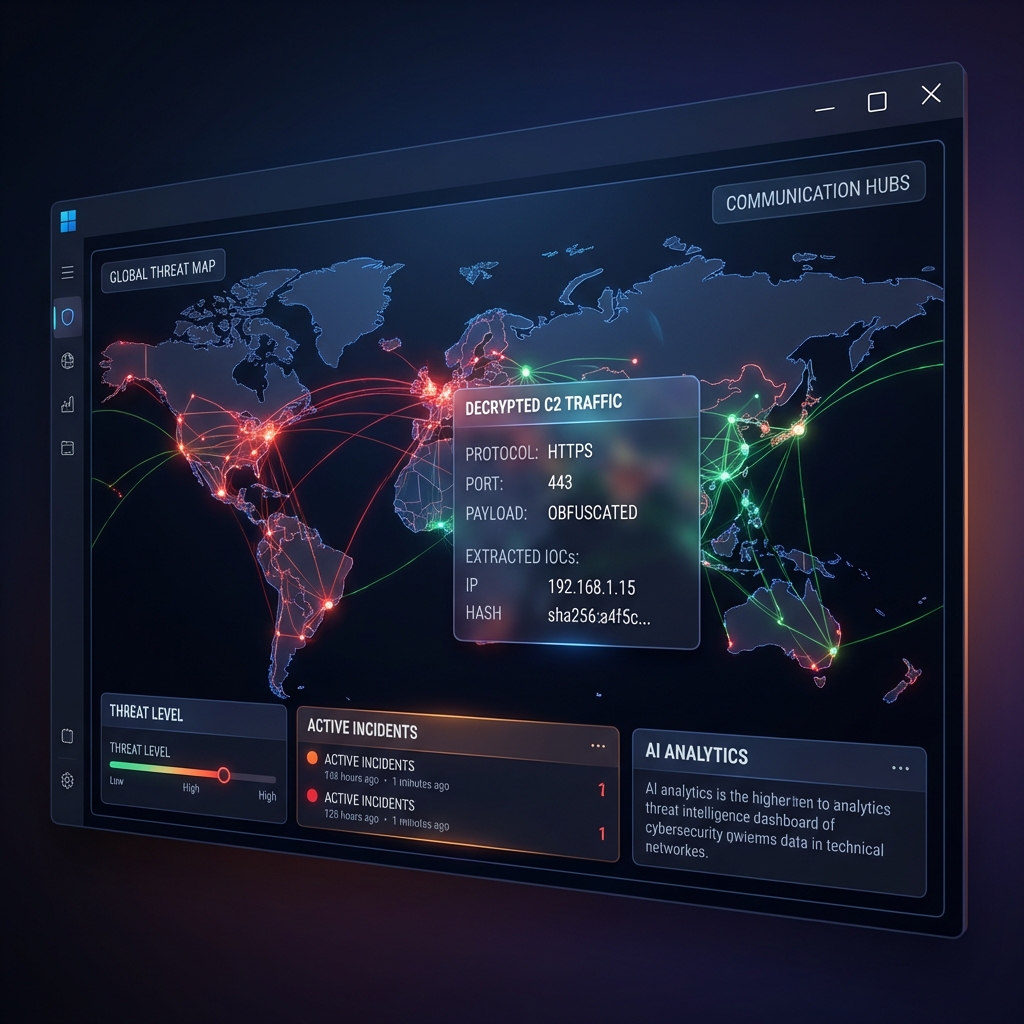
Figure 9: Decrypted C2 traffic analysis within a high-end threat intelligence workspace.
Always analyze malware in isolated, air-gapped sandboxes or specialized virtual machines to prevent accidental infection of production networks.
7.3 Performance and Security Testing
Penetration testers and Network Admins use decryption to:
- Verify sensitive data is not leaked in cleartext within the application layer.
- Diagnose API connectivity issues and measure request/response latency components.
- Optimize server performance by identifying inefficient round trips and redundant API calls.
8. Conclusion
Decrypting TLS using key logging is the preferred method for modern network analysis. It bypasses the limitations of Perfect Forward Secrecy and works with almost all Chromium-based browsers without requiring complex proxy setups. Always handle key log files with extreme care as they contain sensitive cryptographic material.
It is imperative to understand the implications of these techniques. By successfully decrypting the application layer, highly sensitive data, including session tokens and plain-text credentials transmitted through authentication portals such as MS Exchange OWA, becomes fully visible to the analyst. This level of deep visibility must be exercised with absolute ethical rigor and strict data protection governance.
Practice Files Download
Practice the decryption techniques with these sample files generated for this article:
Discussion
Leave a Reply
Your email address will not be published.